Monday, August 29, 2016

How to Create FeedBurner Id For Email Subscription


Enter Your Blog Address Here


Identify Your Feed Source


Enter Your Feed Title And Address Here


Finally Created your FeedBurner Id 


New Configure Your Product Type.


Finally Created Your Feed Burner Id.


Now Activate Email Subscription

Click On Publicize In Main Menu. Click On Email Subscription In Left Side And Activate it if  Not  Already Active .


After Activation Copy HTML Code 


Finally Open Your Blogger Layout -> Add a Gadget -> HTML/JavaScript-> Save 


Noe You Can Save All The Changes Just Refresh Your Blog.

Done.


Thursday, August 25, 2016

WhatsApp New Update , New Feature For All WhatsApp Lovers


All WhatsApp Lovers Here is a Great News . WhatsApp Release New Feature For New Update Version.

The New Feature Is Gif Images . Now we can send Gif images on WahtsApp.


How to Send Gif Images In WahstApp:

Simpy Move on to the Attachment
then select video icon
Next Select Take a video option 
Then record a video ( video Must be in 6 Sec only)
Now Select ok 
Now Here is A New  Feature In Top Right Corner Select Camera Button.
Now Camera Button Turn into Gif Button.
Finally Send .

This Feature Is Available On 2.16.242 . 
If You Want This Feature Download on Internet And Install it.


Thursday, August 4, 2016

How To Create A Pop Up Window For Your Website Or Blog


This Is The Best Way To Add Pop Up Window For All Blog's and Websites . This Pop Up Window Helps You to Increase Page Views For Your Blog's Or Websites. You Can Insert Some Important Links from Your Blog , Website And Other External Site Links Also Insert.

How To Add Pop Up Window.....

Login To Blogger Account.
Go To Dashboard Under Select Layout.

In Layout Section you Can Select Any " add a gadget " .


Now Select HTML/JavaScript .


Now Download  Copy And Past The Following code.


Download Here:  

Note: Now Change The www.easytips4ru.com , You Can Change Width And Hight Of The Pop Up Window .

Wednesday, August 3, 2016

How To Watch Youtube Videos In VLC Media Player


      VLC Is a Great Media Player That Can Play All Media Formats . Now You Can Watch YouTube Videos Directly in VLC Media Player..


How It's Work....

Now  Open VLC Media Player .
Then Click Media Menu Under Select Open Network Stream Or Directly Press Shortcut key Ctrl=N

After Open A Pop Up Window.


Now Open YouTube , Copy the URL Whatever Video You Want to Play In VLC Media Player.


Now Come Back to Popup Window. Past URL Link In " Please Enter Network URL". Finally Press Play Button.


Done... Now You Can Play Any YouTube Video Same Process.


Advantage : Now  Watch Your Favorite Videos Without Ads , Annotations .


Tuesday, August 2, 2016

How To Download Movies Subtitles Automatically In VLC Media Player


       VLC is a Great Media Player That can Play All Media Formats. Now VLC Player New Update Have Subtitles Feature to Find And Download The Subtitles Automatically. You Can Find The Perfect File Easily Download The Subtitles Automatically.


If You Want To Subtitles Automatically For All Movies In VLC Simply Do this.....

Check Your VLC Media Player is Latest Version Or Not.
 Find In "Help" Tab Select "Check for Updates"


After Latest Version Installation . Play Any Movie In VLC Player . Movie to "View" Tab Under Select "Download Subtitles ".


Now Select Your Subtitle Language In Drop Down List. It's time to Search Subtitle file, Simply Click " Search by hash" or " Search by Name". 
Search by Hash-- It's Give Perfect Matched Subtitle File.
Search by name -- it's Give Related to Title Name .

Now You can Select  Any file , Finally Press " Download Selection" Button it's Showing Success: Subtitle loaded


You can Find This Subtitle File Your Movie Location. Just Refresh it, Now Play The Movie Automatically added to Subtitle. ( If you Have Already Subtitle file You Can  Add Subtitle Manually- Subtitle tab -Add Subtitle file)

.


Monday, August 1, 2016

How To Set Password Any File By Using WinRAR


      Both RAR and WinRAR Formats Support Encryption . To Encrypt Files You Need To Specify a Password Before Archiving.

How It's Work:

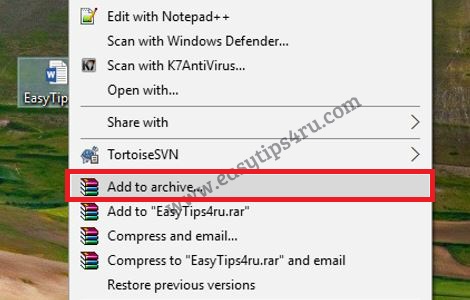
Choose A File (.txt , .doc, .xlsx , .JPEG Or Png ) Or A Folder , Then Right Click on The File Or Folder.


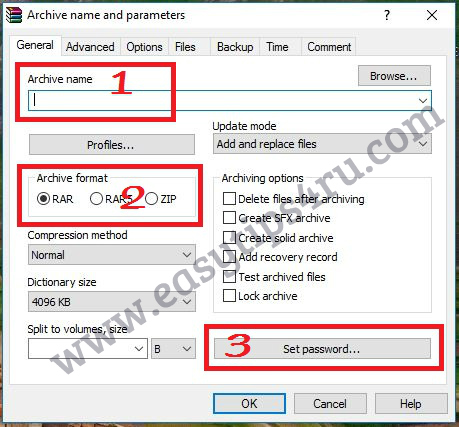
Select "Add to Archive ",  Now Open A Pop Up Window . In General Tab Give Archive Name , Format Finally Select "Set Password".


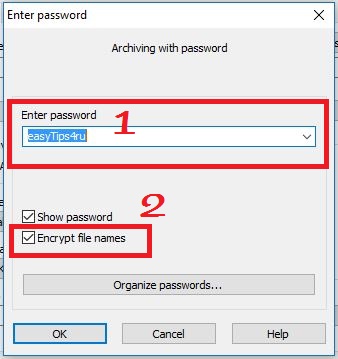
Again open A Pop Up Window Finally " Enter Password". Don't Forget To Select Check Box            " Encrypt File Names


Finally Select "Ok" Again "Ok".

Now Your File Or Folder Set Password. Test Once It's Working Or Not.


Note: It You lose Your Password , You Will be unable To Open The Encrypt Files, Not Even the WinRAR Author Is Able To extract Encrypt files.


How To Convert Word,JPEG,Excel To PDF Without Software


          Now a Days Peoples Use Many Converters To Convert  Microsoft Word , Excel and Power Point Documents To a Adobe PDF Format.  It Is Very Easy to Convert Any Document into PDF Or Other Format. 


Simply Follow This Processes 
  • Open Any Word Document.
  • Net Click File Then Click On  Save As .
  • Now Pop Up Window Will Appear .
  • Then Select Path  And Give  a Name Of The File Under The File Name.
  • Now Click on Save File As , it's Showing A Drop Down Menu . Select PDF(*pdf) Option.
  • Now Click Save .


Friday, July 29, 2016

How To Set Your Photo As Pen Drive Icon


           Here Is A Simple Trick To Set Your Photo As Your Pen Drive Icon. You Can Choose Your Photo Or Custom Icon To Show As The icon of Your Pen Drive . I'll Tell You How To Create A Custom Icon For Your Pen Drive ,it Will Work Any Computer .

        First Thing , You Can Create Or Convert  Your Photo As .ico File Format. This Photo Can Use Your Pen Drive Icon.


How To Create .ico File:

Simply Follow These Steps---

First Select Your Photo , Convert It As .ico File Format .

Ico Generator  Sites Favicon Generatot And Coolutils

Click This Sites Upload A pic , Select ICO Generate Option Finally Download It.


Now Create A autorun.inf  file .

Remember Your ico File Name Is Icon Name

Now Open The Notepad And Copy These Below Lines Exactly .

[AutoRun]
Label =EASYTIPS4RU
Icon=NivasReddy.ico


NOTE: You Can Modify EASYTIPS4RU As Removable Disk And NivasReddy.ico As YourName.ico.

Finally Save This File As autorun.inf   , Select File Type As All Files .


Finally Copy These Two Files .ico File And .inf Files To Your PenDrive.

After That Hide Both Files In Pen Drive .

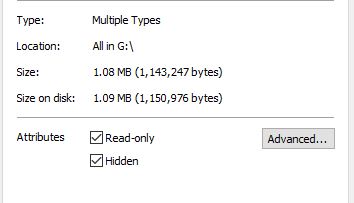
Select Both Files -> Right Click -> Properties. Then Select Check Box Hidden.

Final Step Unplug  Your Pen Drive And Plug it In Any Computer.Now You Will See Your Photo As 
The Pen Drive Icon.


How To Make Mobile RingTone With Your Name


Here Is A Good News For All Mobile Ring Tone Lovers. The World's First Website Which Provide Free Rings Tones With Your Name In Mp3 Format For All Mobile Formats. 

This Site Provide All Indian And Hindi Names. Simple Enter Your Name In Search Box Find Finally Download Ringtone In Mp3 Format.


Thursday, July 28, 2016

How To Translate WhatsApp Messages With Tap To Translate


                   Here Is A Good News Is That Google Has Introduce Tap to Translate Feature In Google Translate App .This New Feature Translate WhatsApp, Facebook etc., Messages ,no longer Need To switch Between The Apps. This Feature Works Even Your Are In Offline.

How It's Work:

You Need This Google Translate App.If You Already Installed This App Check It's Up To Date ,Like Latest  Version.

Now Open Google Translate App
Go To Settings
Now Click On Tap To Translate Option .
Now Check This Option Enable Tap To Translate , Default It's Disabled.


Now Open WhatsApp ,You Got A Message From One of Your Friend . That Message Contains Some Foreign Or Unknown Language you Don't Understand . Simply Long Press On That Particular Message Then Select Copy Icon On The Top Side Bar Menu.


Once Copy This Message Google Translator Icon Will Be Appear On The Screen.Now Select your Language Which One You Want.


You Can Also Reply This Message To Any Language. Now Click On New Translation , type Your Message  Convert Any Language Then Copy And Send It.


Note: This google Translate Feature Not only WhatsApp , It's Working All App's Like Facebook,Twitter,Line,WeChat,Viber,Skype etc.,